Palette editor
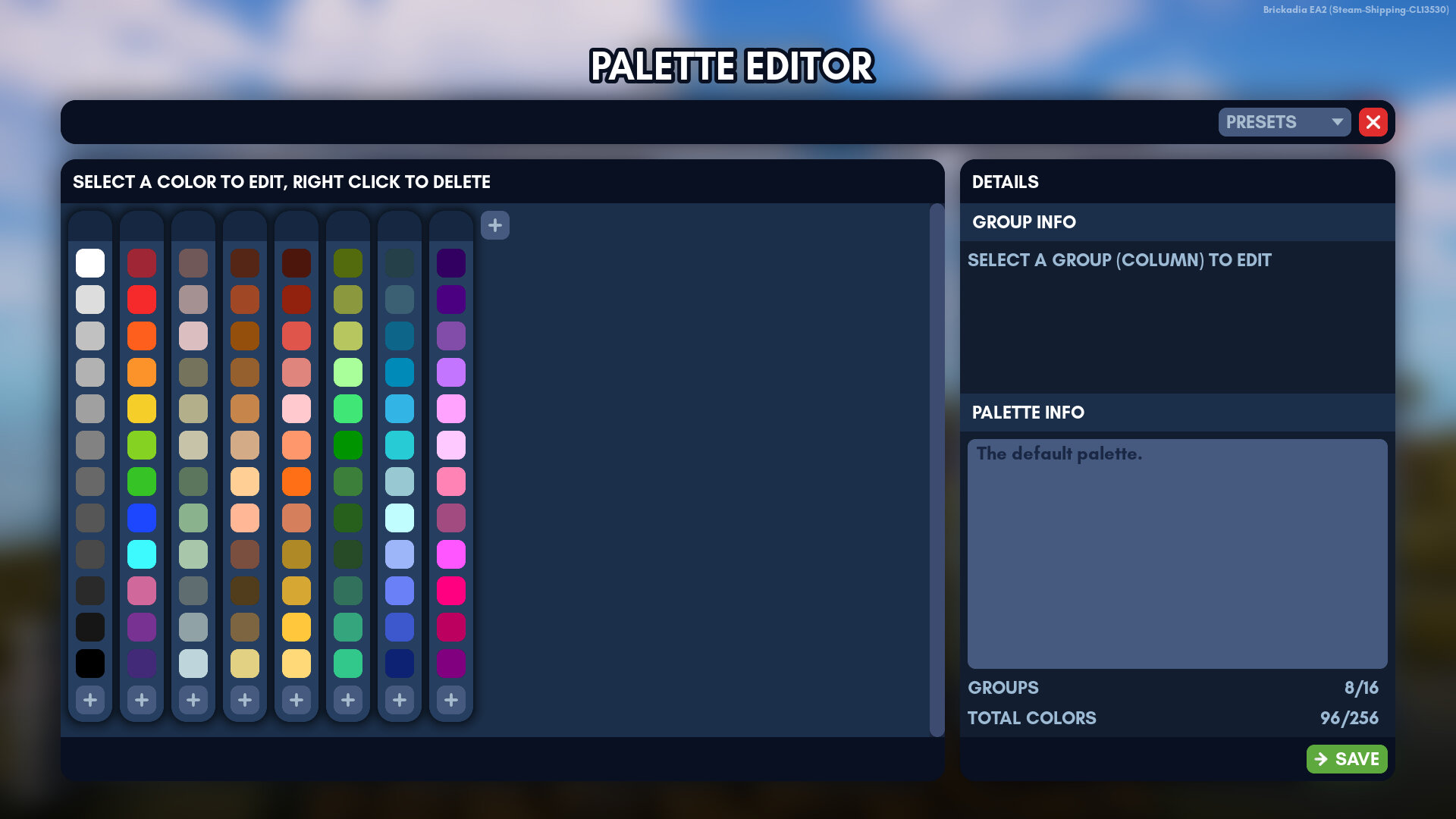
The palette editor is where you edit palettes for use in the avatar editor or the server.
Menus that allow you to access the palette editor:
- Avatar editor
- Server settings
Note
You will not be able to undo changes to your palette, and you will lose all your changes without being prompted if you press Esc! Be careful.
What is a palette?
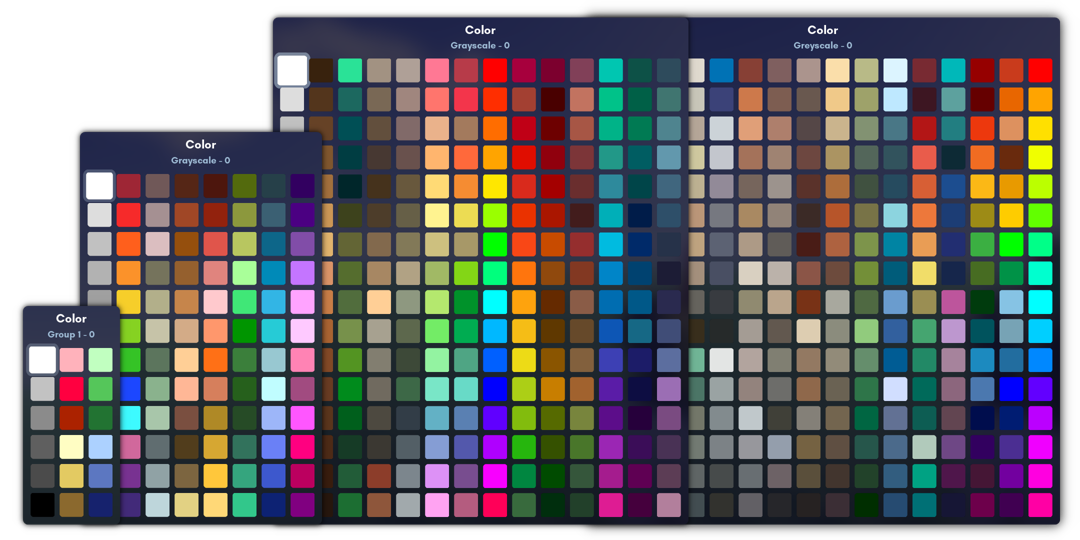
A palette is a set of colors that can be used for painting avatars or objects on a server. You are not required to sync the avatar and the server palette together.
There are limits to what each palette can contain per file:
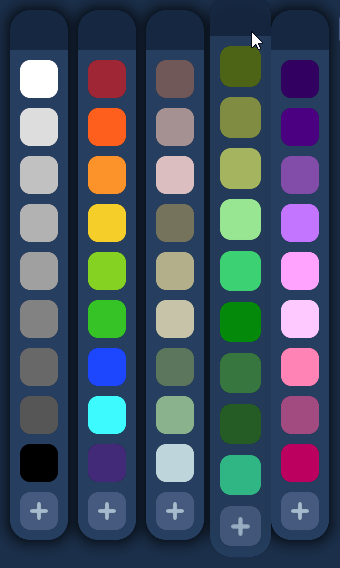
- 16 groups
- 16 colors per group
- 256 colors per palette in a 16x16 grid
Adding colors
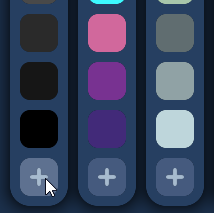
Click the plus button below the existing colors to add a new color. The new color is white until edited.
Moving colors
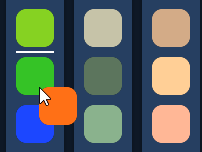
Click and drag colors to move them on the palette, across different color groups. The line displays where your color group will be placed between.
Editing colors
Click on a color to open the color picker window.
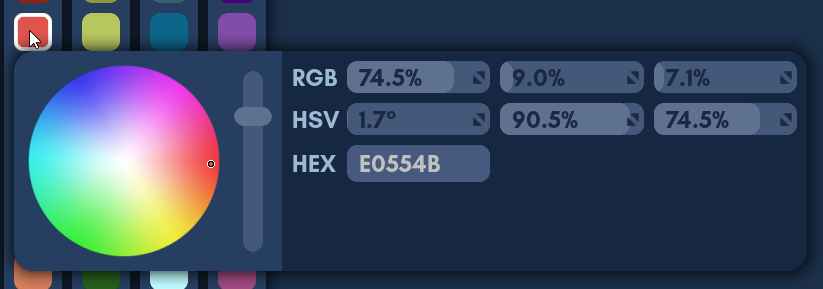
The color picker window has the following elements:
On the left:
- Color wheel: Controls the hue and saturation.
- Value slider: Controls the value/brightness of the color.
On the right:
- RGB sliders: Controls the percentage of red, green and blue that the color has.
- HSV sliders: Controls the degree of hue, the percentage of saturation and the percentage of value that the color has.
- Hex code input: You can import hex codes from HTML or creative software.
You can click off the color picker window once you are done with picking the color you want.
Removing colors
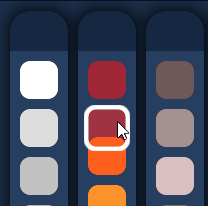
Right click on a color to delete it from a column.
Adding color groups
Click the plus button next to the existing groups to add a new color group.
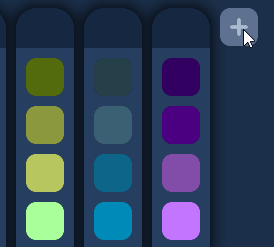
If the button is greyed out , you have reached the maximum color group limit of 16 groups.
Moving color groups
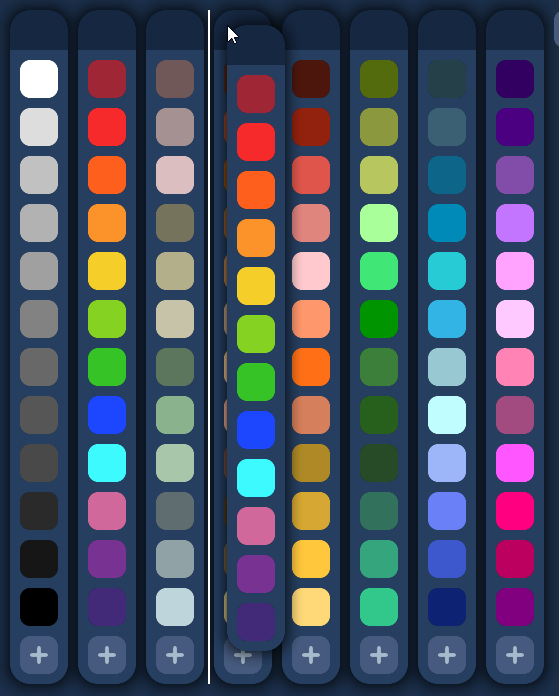
Click and drag the top part of a color group to move the color group. The line displays where your color group will be placed between.
Naming color groups
Click on the top part of a color group to select that group. Selecting that color group allows you to name the color group to suit their colors.
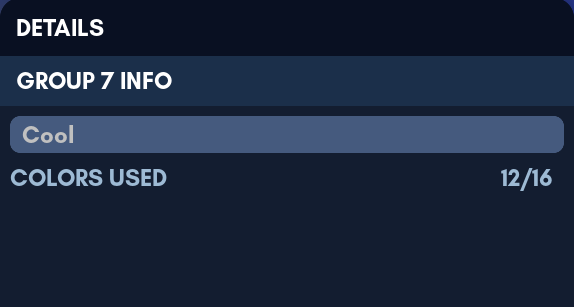
Keep them short but descriptive. Some good names for groups include:
- Grayscale
- Foliage
- Neon
- Metallic
Removing color groups
Right click on the top dark part of a color group to delete it.
Editing palette information
You can edit the description of your palette. You can describe what the palette is for. Some good details to add:
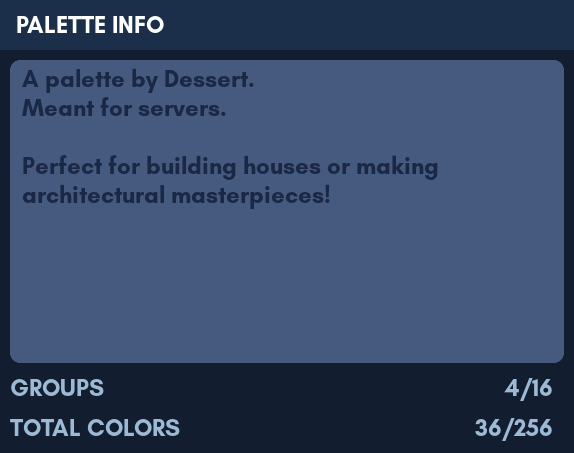
- The creator of the palette
- Is the palette used for a server or the avatar editor
- A brief description of what the palette is good for
Saving the palette
To save your changes of the palette directly onto the server or the avatar editor, click the Save button.
Migrating colors in a server
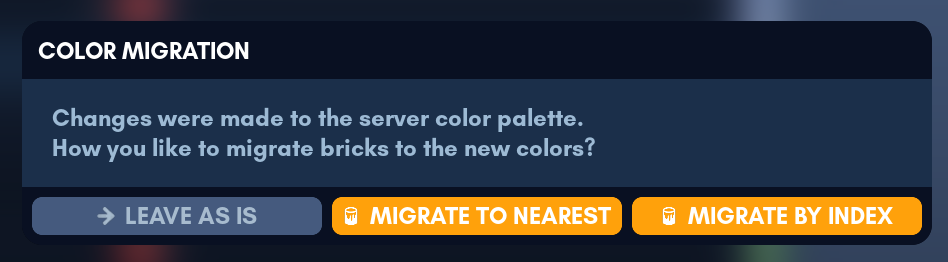
If you decide to save changes to the server palette, this dialog will appear and ask you to migrate colors with one of these three methods.
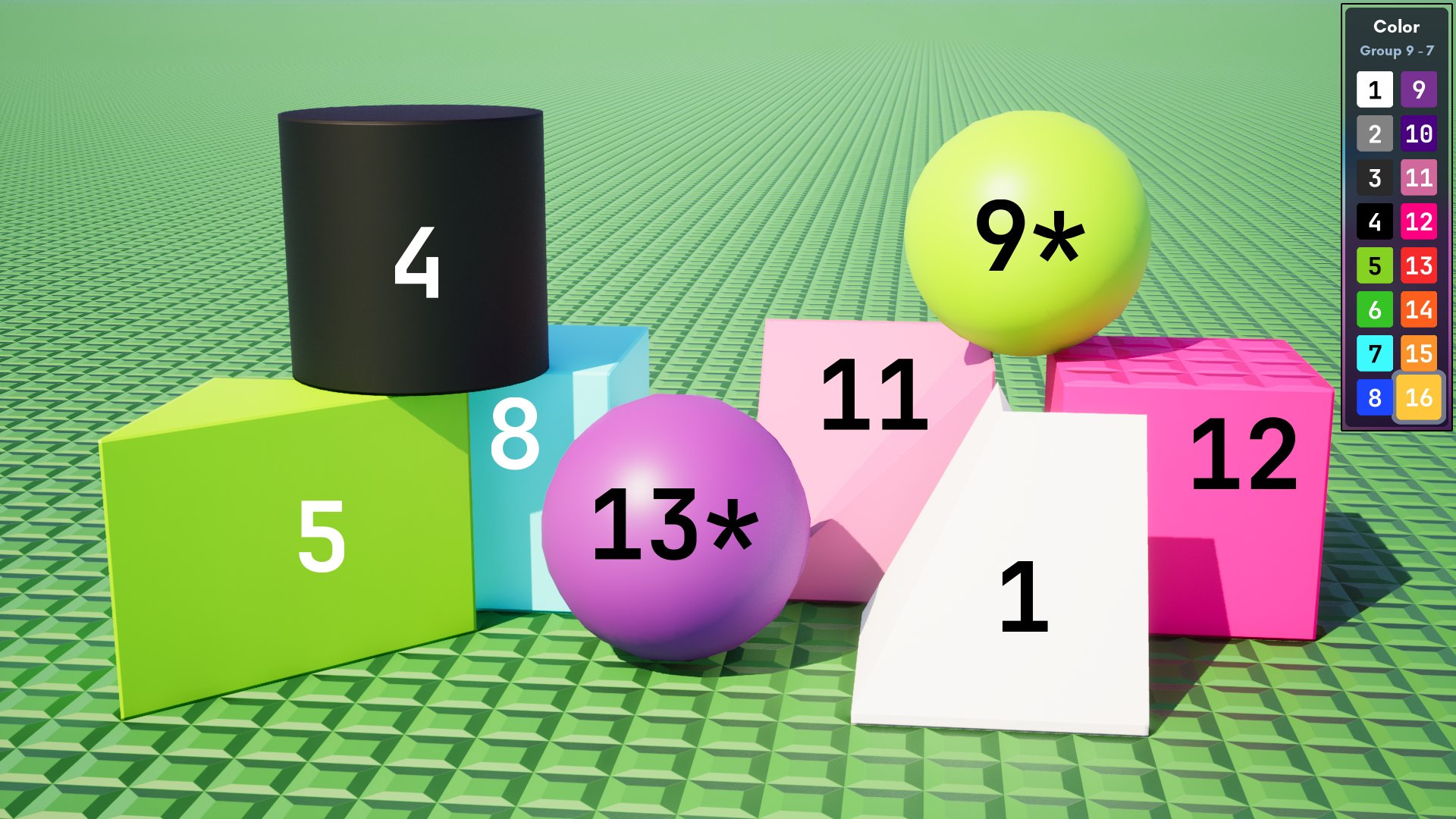
Bug
There is currently a bug where non-brick grid entities do not migrate over. Anything with an asterisk indicates an incorrect result due to this bug.
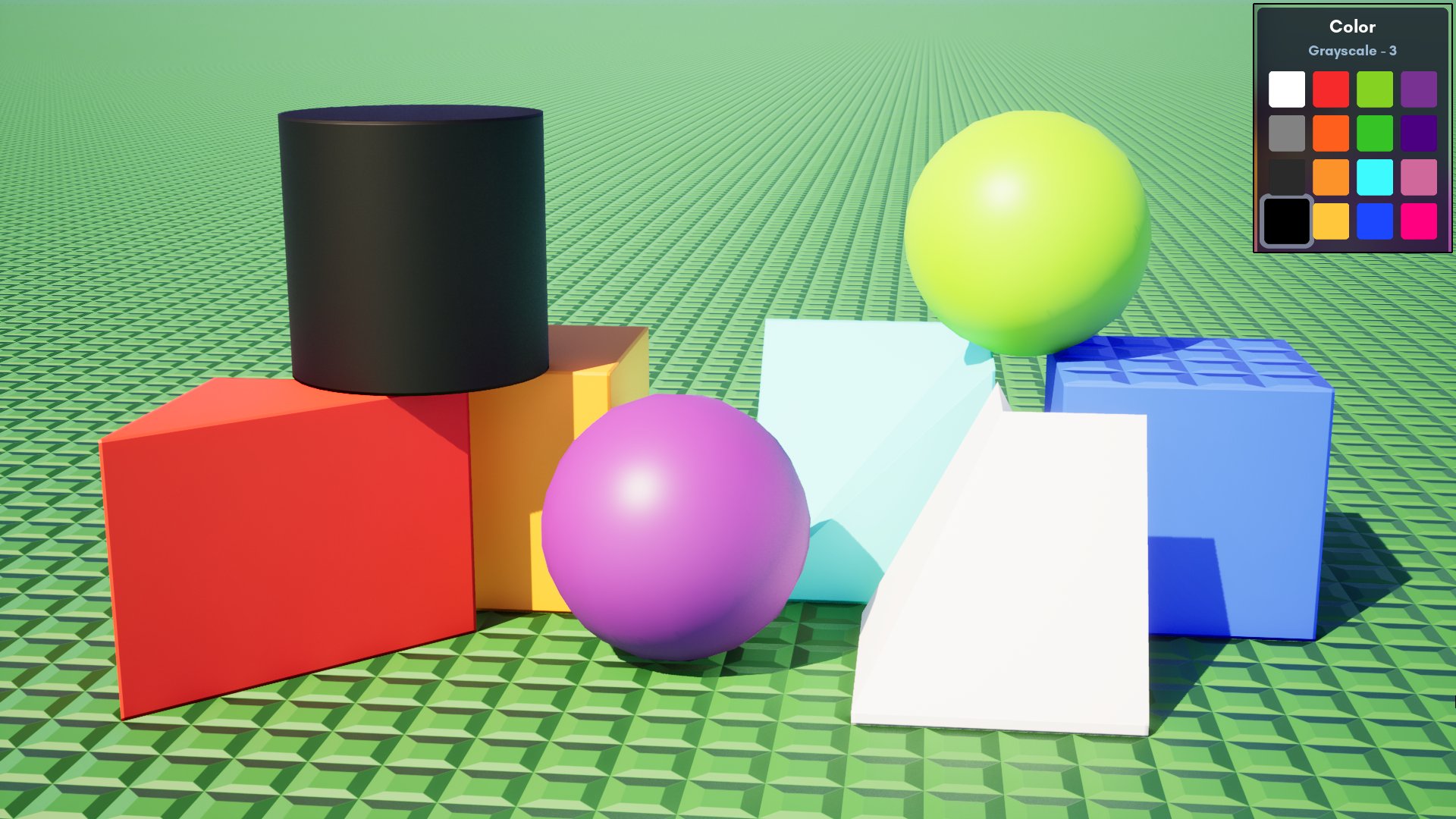
All objects retain their color with this migration method, regardless of similarness and color order or index.
New objects can be placed with the new colors and they still wouldn't affect the colors of old objects.
A before/after is not needed. Everything is the same.
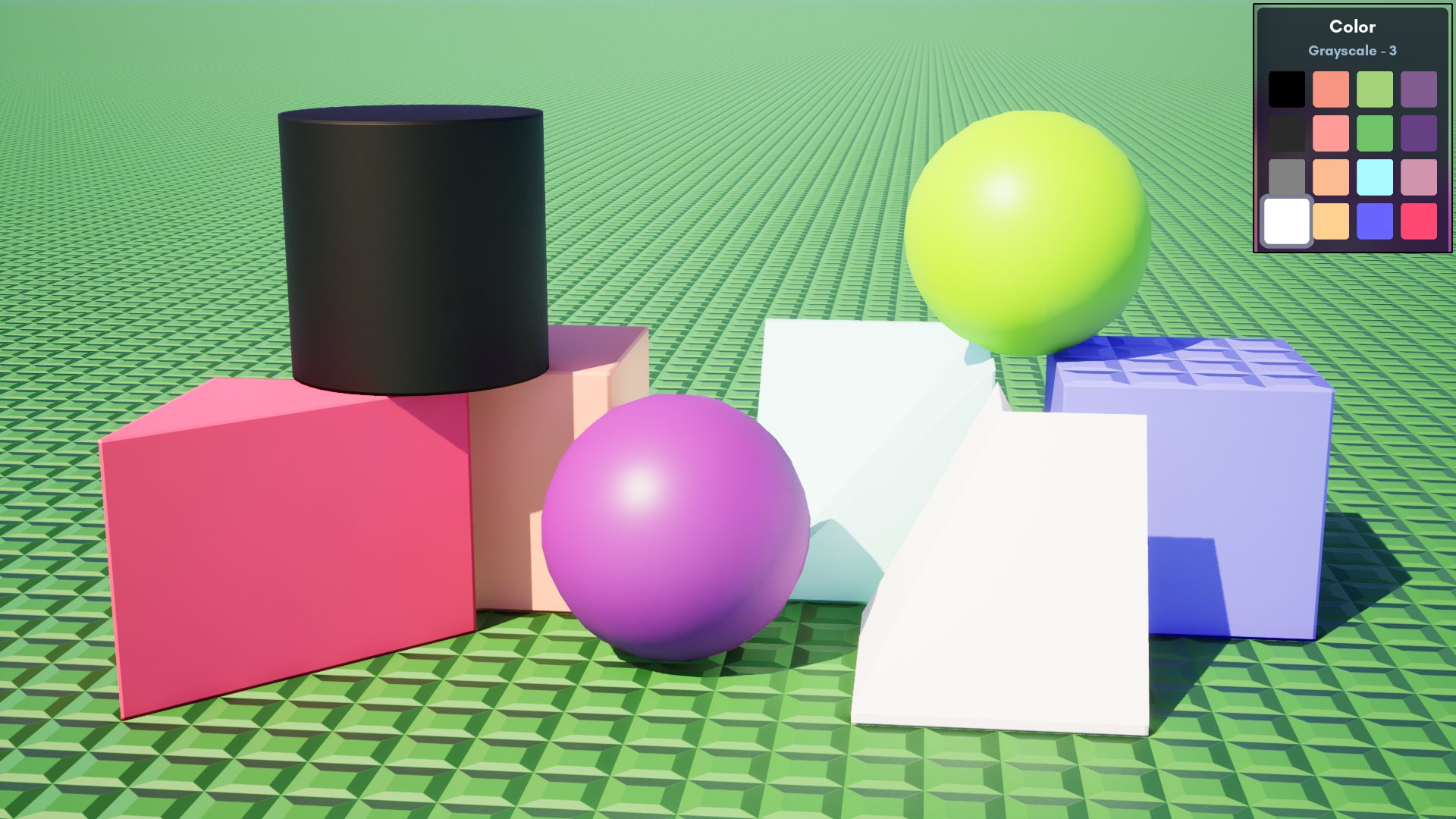
With this migration method, objects with non-existing colors will inherit the new colors closest to them, regardless of palette index.
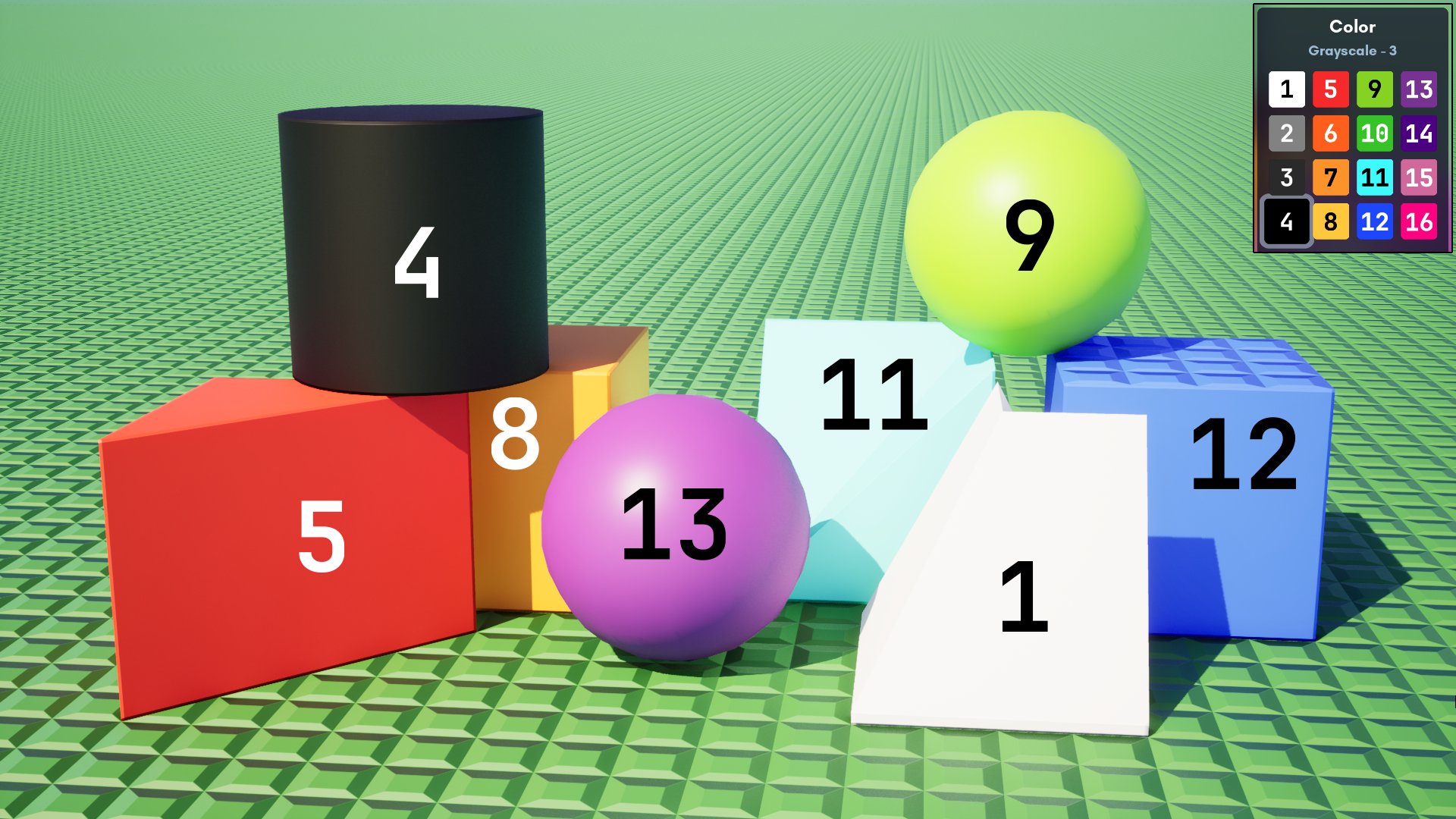
This migration method does not match by color. Instead, it matches up against the index of the previous palette. If you change the layout of the palette, there's no guarantee any of the old colors will be retained.
Palette presets
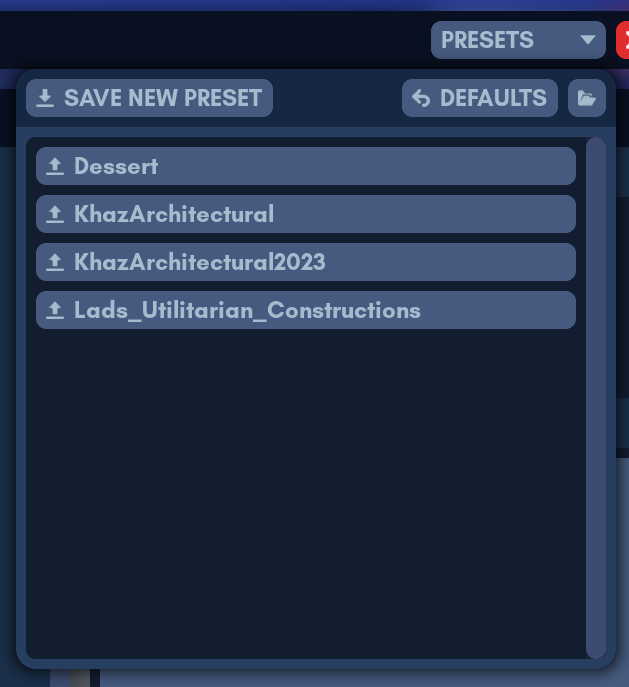
To save a new preset, click on the Save New Preset button.
This will prompt you to type a name for a preset. After typing the name, press Enter to save your current configuration as a preset. Clicking outside the name input box will discard creation of a new preset.
Clicking on a preset in the presets list will load it in its entirety.
The Defaults button resets everything to default settings.
Managing preset files
To manage preset files, hover over their names. The following actions are available:
- The pencil button allows you to rename the preset.
Type the new name for your preset and press Enter to finish renaming the preset. - The yellow overwrite button allows you to overwrite a preset.
To confirm overwriting the preset, click the Confirm Overwrite button. - The trash can button allows you to delete a preset.
To confirm deleting the preset, click the Confirm Deletion button.
Presets folder
The folder button opens the location of the game's presets folder in your operating system's file explorer. You can manage presets using conventional file explorer actions. All presets (palettes, avatars, environment settings and etc.) are in this directory:
Folders not supported
There is currently no interface and indexing for folders. You will not be able to grab presets inside folders.