Looking around
By default, you are in first person view with your camera inside your head.
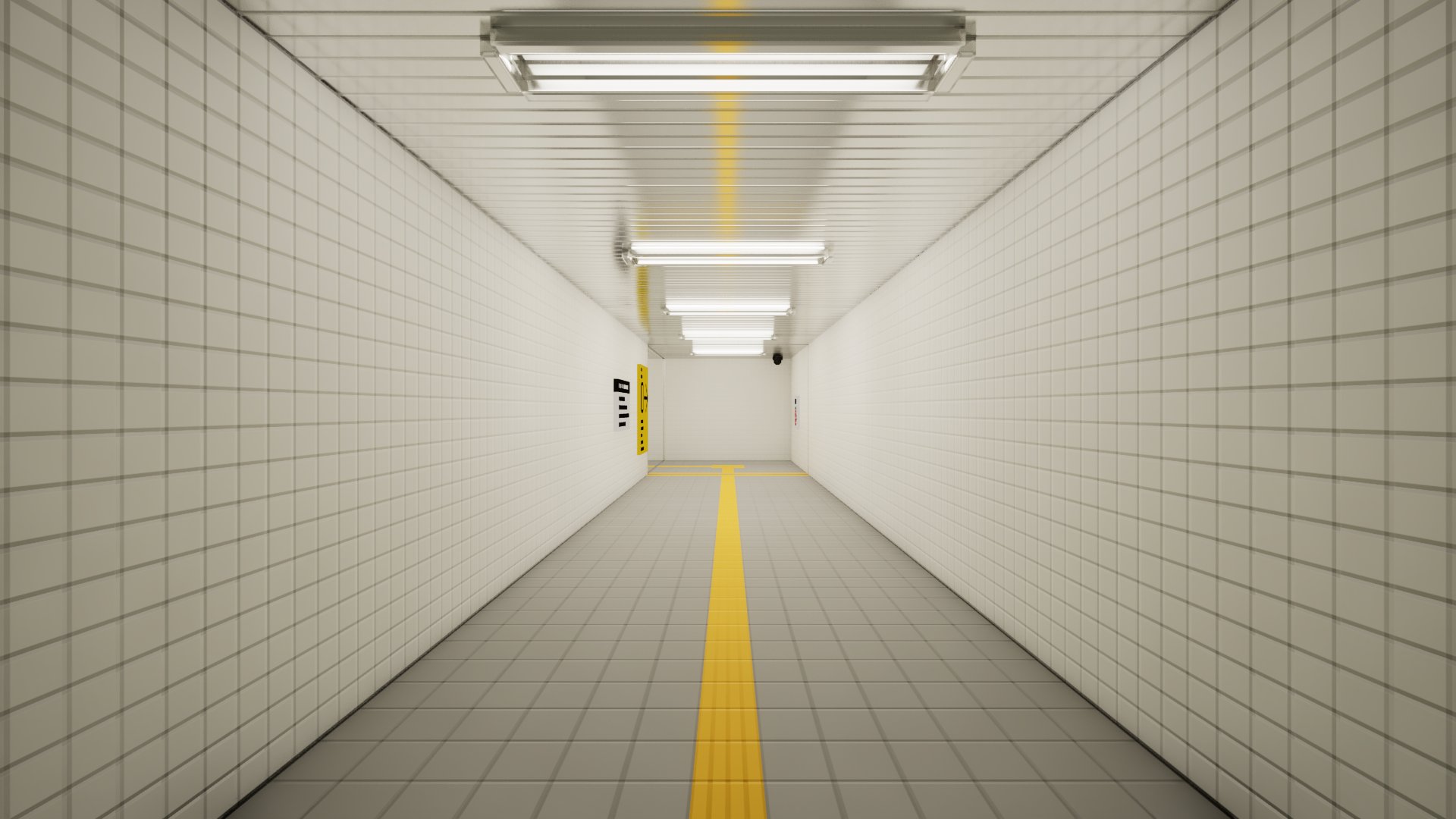
To move your view in first person, move your mouse.
Your movement is relative to your look direction.
Zoom
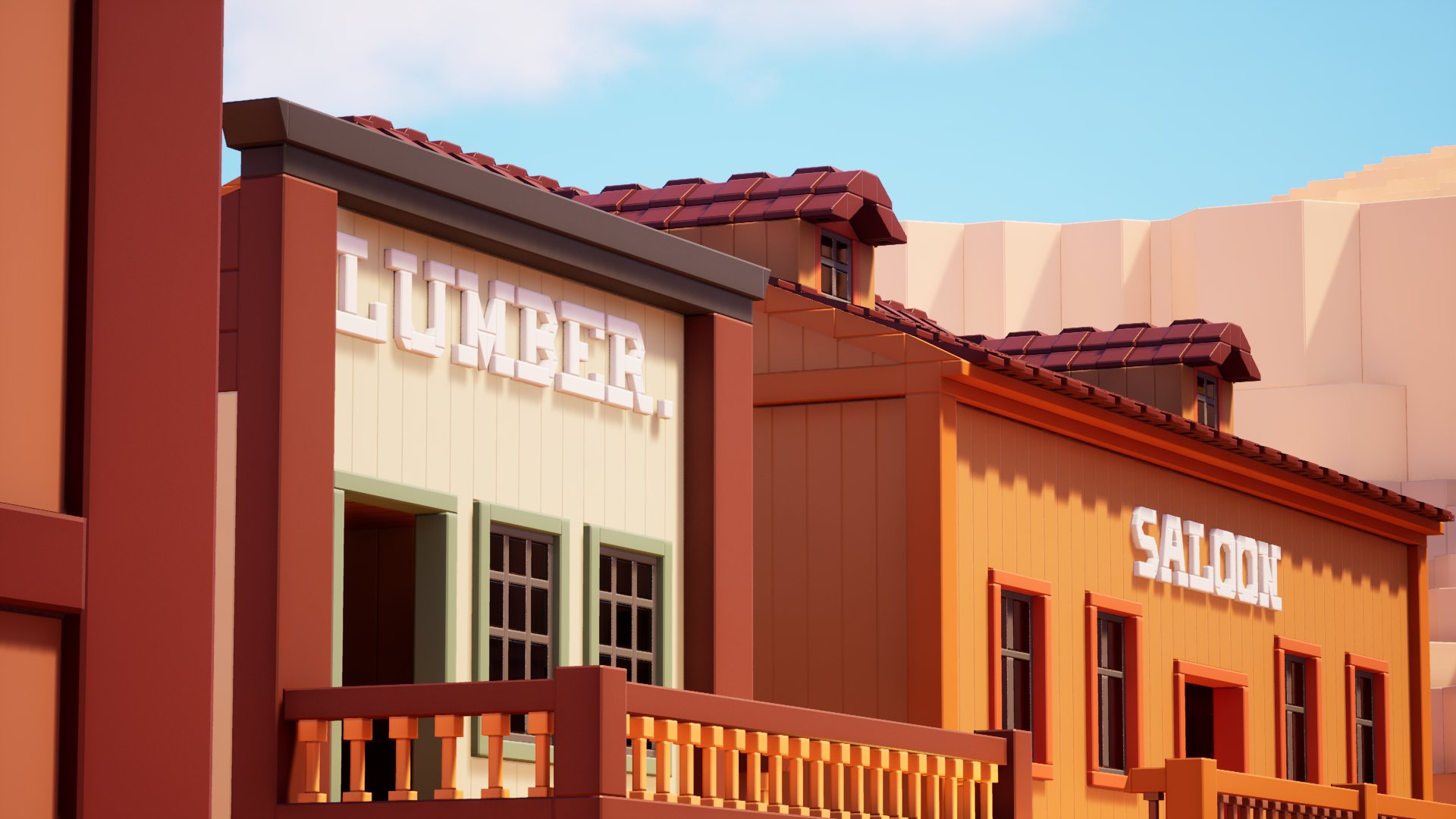
Hold Z to zoom in and look at smaller details.
- Scroll up your mouse wheel to zoom in.
- Scroll down your mouse wheel to zoom out.
Free cursor mode view
If you enable free cursor mode using M, your view is locked to the current direction until you hold the Right Mouse Button to rotate your view around.
Flashlight
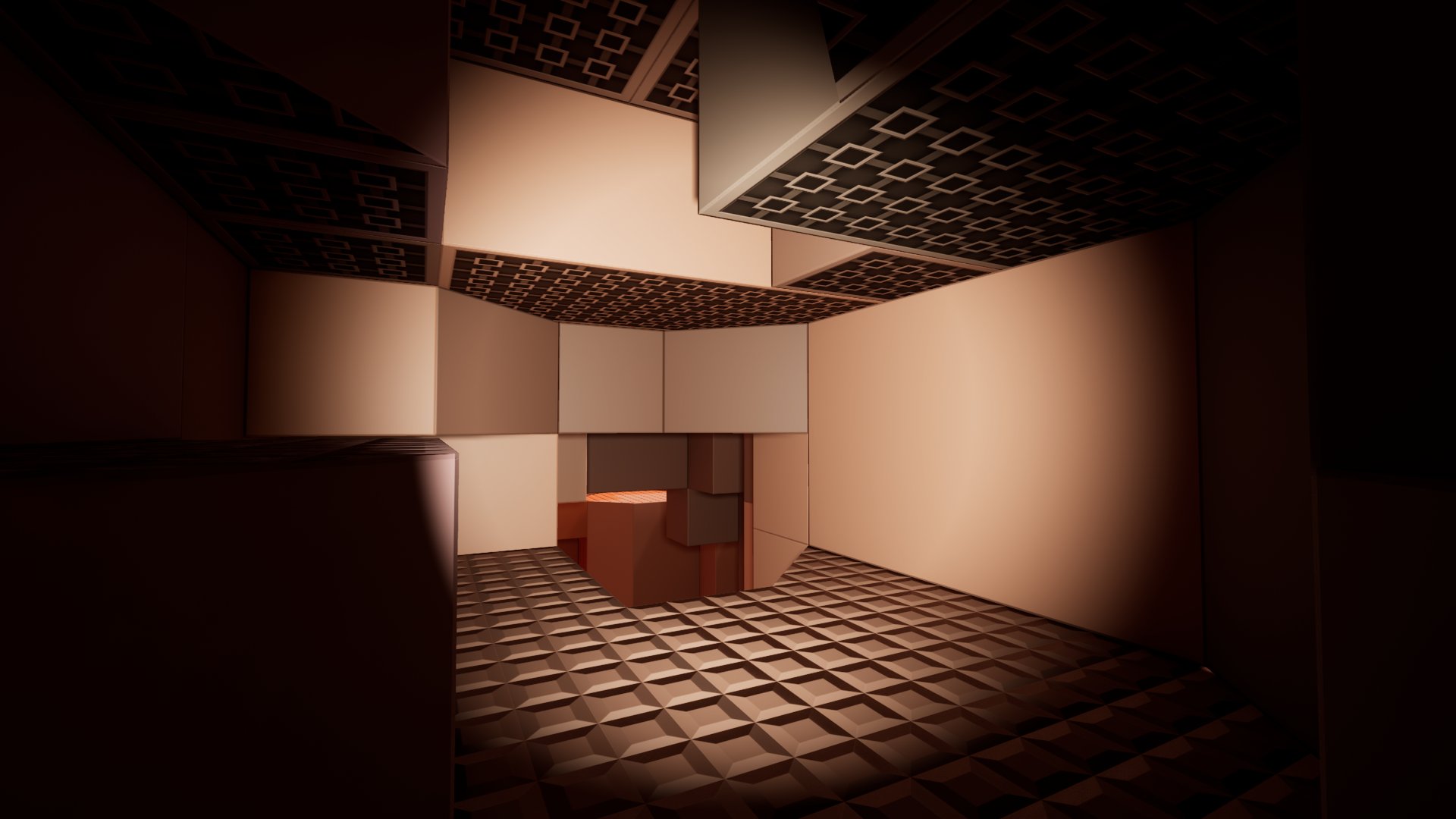
The flashlight allows you to see in dark or shaded places. Toggle it using the F key.
Third person view
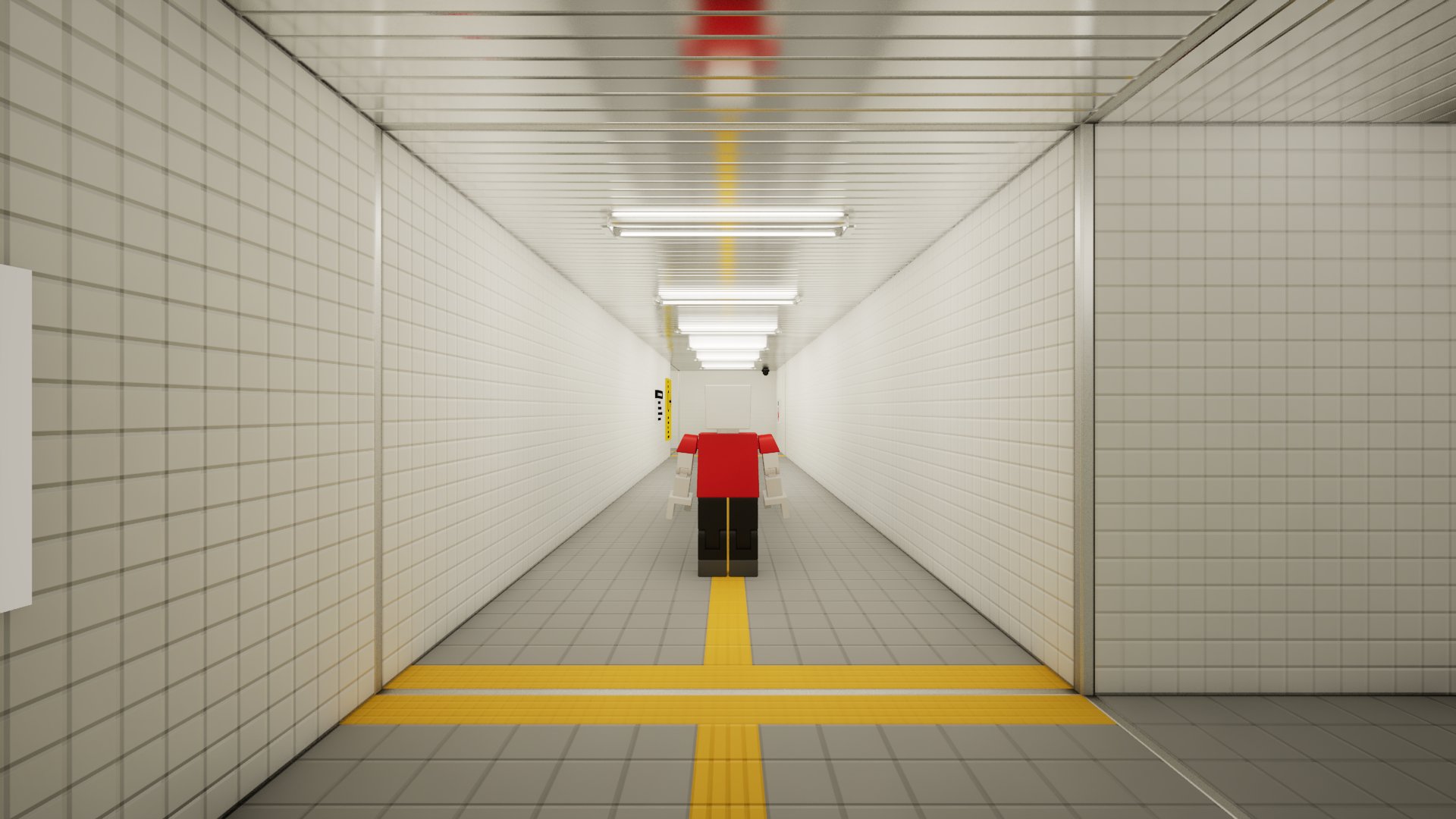
Toggle between first person view and third person view using the Tab key.
In third person view, your movement is relative to the direction of the camera.
Disabling view transition animation
If you prefer the perspective switch to be instant, you can disable the view transition animation that you get when you switch to third person or first person.
To toggle the view transition animation:
- Open the options menu in the main menu or the pause menu.
- Click the General button to access the "General Options" menu.
- Look for the "Advanced Camera Settings" header. Find the "Disable Camera Mode Switch Animation" option under the same header.
- Toggle the option to your preferences.
Moving around the camera using the keyboard
You can move around your view at fixed speeds by pressing one of the following keys:
- Up - Pitches the camera up.
- Down - Pitches the camera down.
- Left - Turns the camera to the left.
- Right - Turns the camera to the right.