Camera tools
Smooth Camera
Here is a reference of smooth camera not being turned on yet.
{{video("../assets/media/essentials/camera-tools/smooth-camera-off","Smooth Camera off")}}
You can toggle smooth camera with F5.
Instead of the camera snapping to the mouse input during normal gameplay, the camera will gradually transition where you're looking at. The natural shake of your hand on the mouse is eliminated as a result, opening up possibilties to create stable and cinematic shots.
{{video("../assets/media/essentials/camera-tools/smooth-camera-on","Smooth Camera on")}}
Freeze Camera
May be disabled on certain servers
The default keybinding for freezing the camera is unassigned, so you will need to set up that keybinding yourself:
- Open the options menu in the main menu or the pause menu.
- Navigate to the controls menu.
- Look for the "Special Function" header. Find the "Toggle Freeze Camera" option under the same header.
- Set the keybind to any key combination you want to use for freezing the camera.
Once you have set a keybind for freeze camera, you can lock your camera in place and move your character without changing your view when you press that keybind.
{{video("../assets/media/essentials/camera-tools/freeze-camera-on","Freeze Camera")}}
Your camera will not be able to move until you toggle freeze camera off. When you toggle it off, the camera returns to your character and you can move physically to adjust it again.
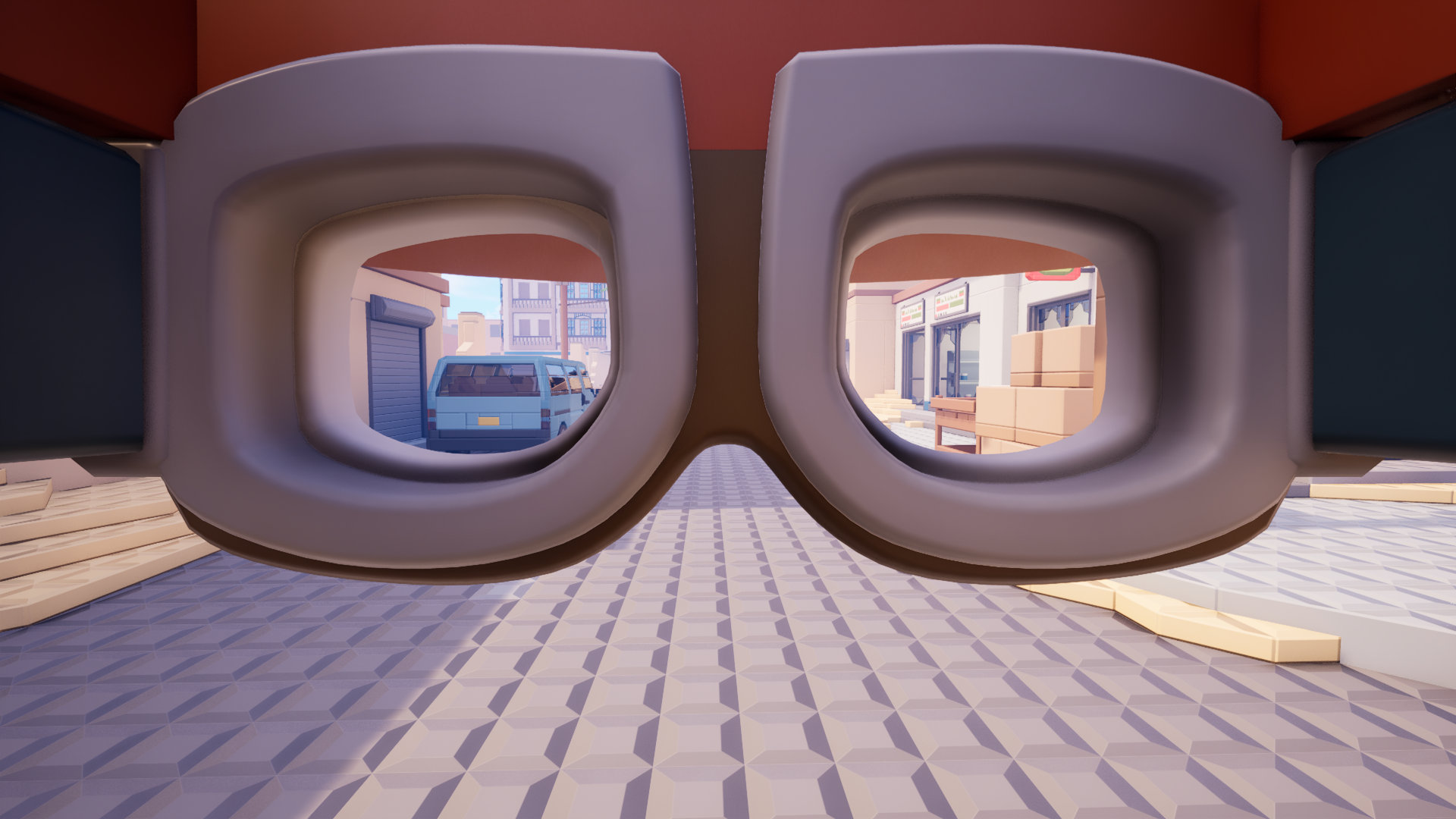
If you see your accessories when you toggle Freeze Camera in first person, that is normal and is not a bug. Games often render things differently in first person to not obstruct the camera, as it might cause playability issues.