Chat
To get started with chat, press T to start typing your message.

You can format your chat messages to add bold, italic or underlined text. Everything you need to know about chat formatting is available in this page: Chat Formatting.

Once you finish typing your message, you can now press Enter, which sends your message to the server chat.

The name colors of chat indicates the highest role (with a role color set) that the player has. Roles have varying colors.
Commands
You can also execute a variety of commands through chat. All you have to do is start with a slash.
When you send a command to the chat, it will execute certain functions in the server or on your client.
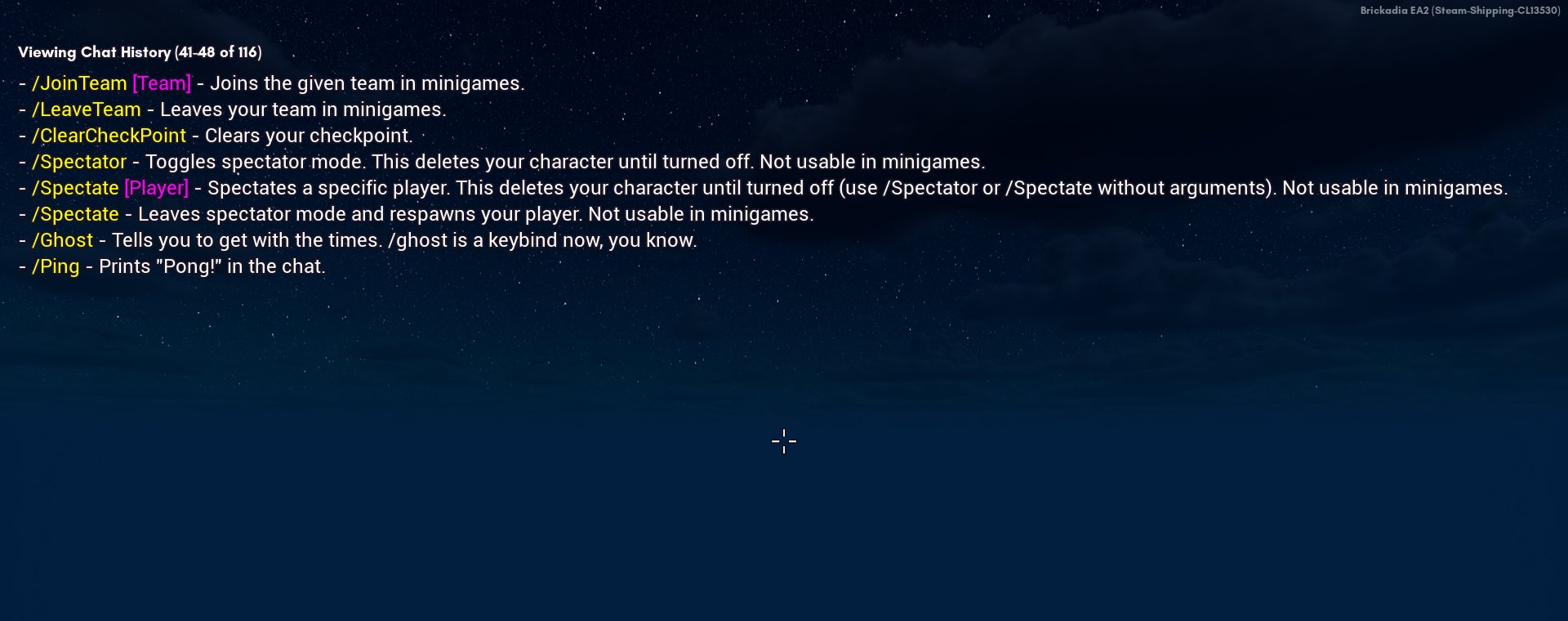
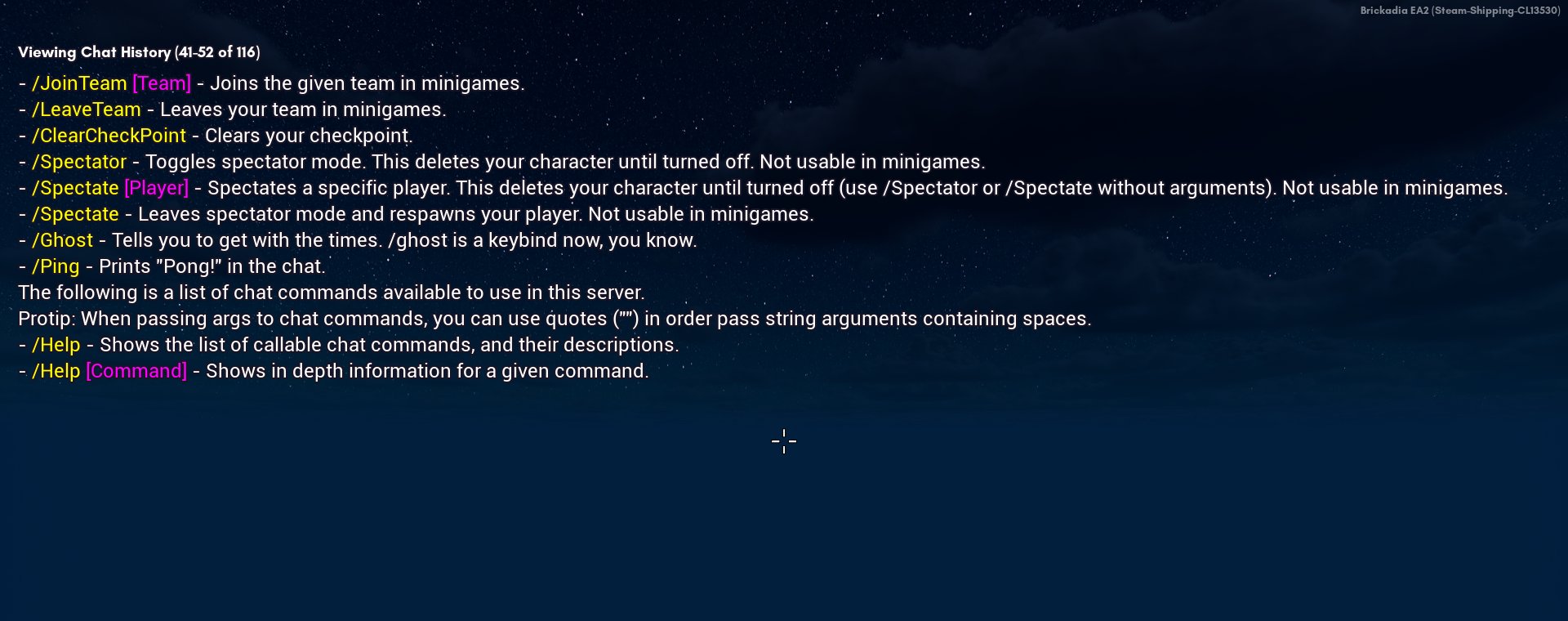
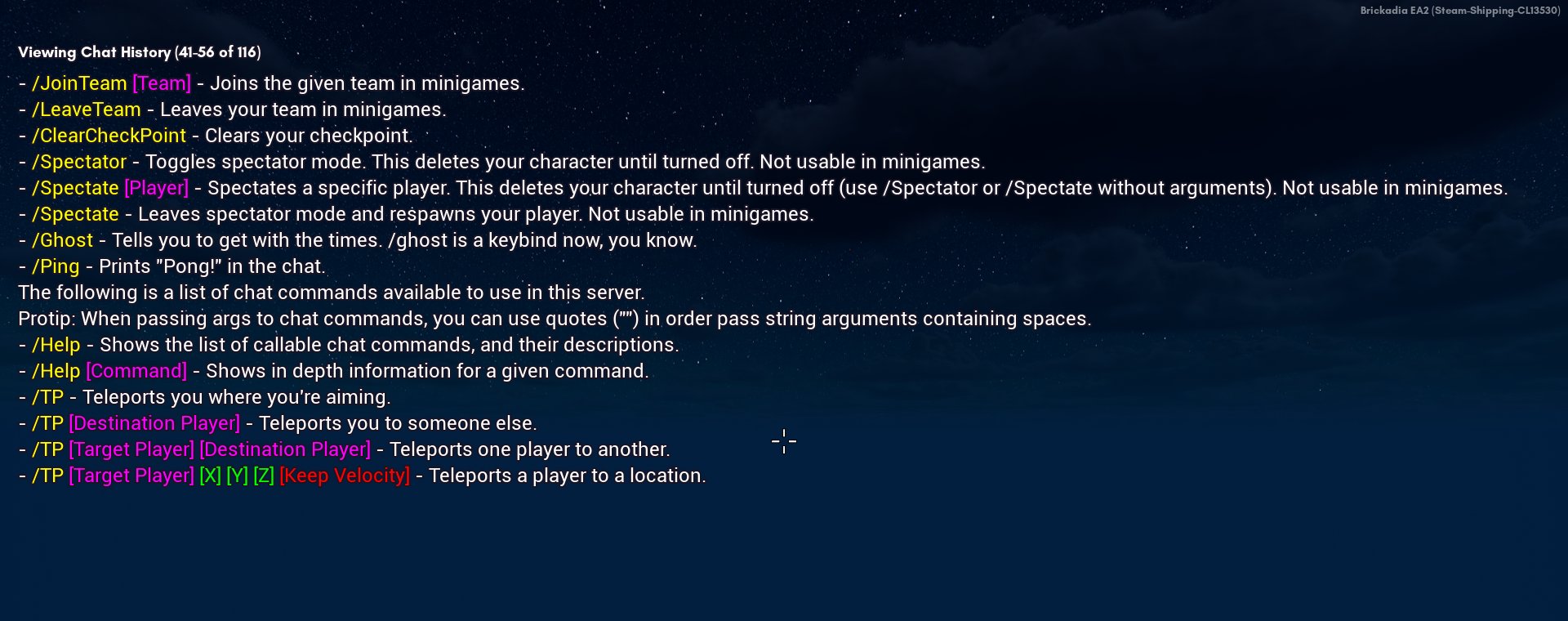
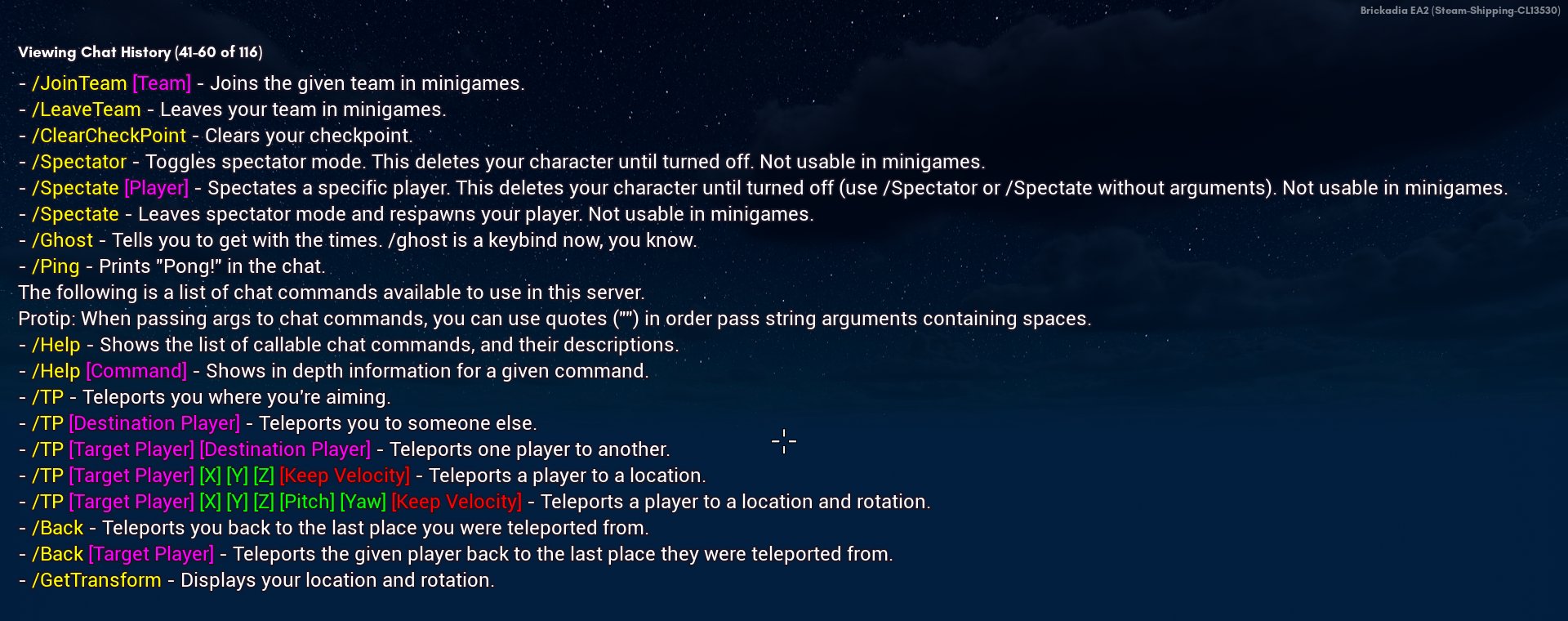
Type /help for a list of executable commands, which can be found here: Chat Commands.
Note
Some chat commands may be admin only. Check your permissions.
Sending a command will not trigger the typing indicator.
Typing indicator

This will appear above the chat if you, someone else or a group of people are typing, which can be nice to have when you want to know if you're talking over someone or queue your message later.
If there are too many people typing at once, the game will count the total amount of people typing for you and show that instead.
This will not apply to commands. The game detects when you start a command using a slash.
Chat bubbles
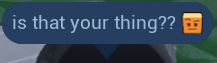
A chat bubble will appear temporarily above another player's head when they send a message.
Chat in free mouse mode
Entering free mouse mode using M lets you do the following:
Selecting text directly in the input box when you type into chat:

Accessing emotes with the smiley emote button :
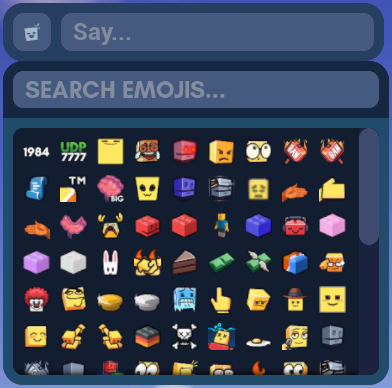
Scrolling chat
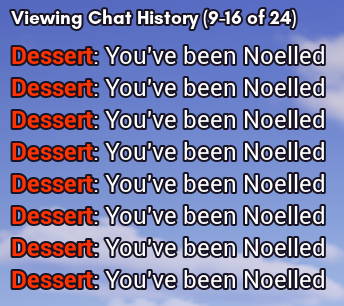
You can scroll up/down the chat if the conversation is too fast for you.
- Page Up to scroll up the chat.
- Page Down to scroll down the chat when you are done.
Note that you will only be able to read your own chat history, so it can only go so far back to the moment you joined each server in a single session.
Tired of scrolling the chat and just want to get to the start or end quickly?
- Hold Left Ctrl and press Page Up to instantly show the oldest messages.
- Hold Left Ctrl and press Page Down to instantly show the newest messages.
Chat customization
There are plenty of ways to customize your experience with in-game chat.
To access the options for chat customization:
- Open the Esc menu or go to the main menu.
- Click the Options button.
- Click the General button to access the "General Options" menu.
- Scroll down until you see the "Chat" header.
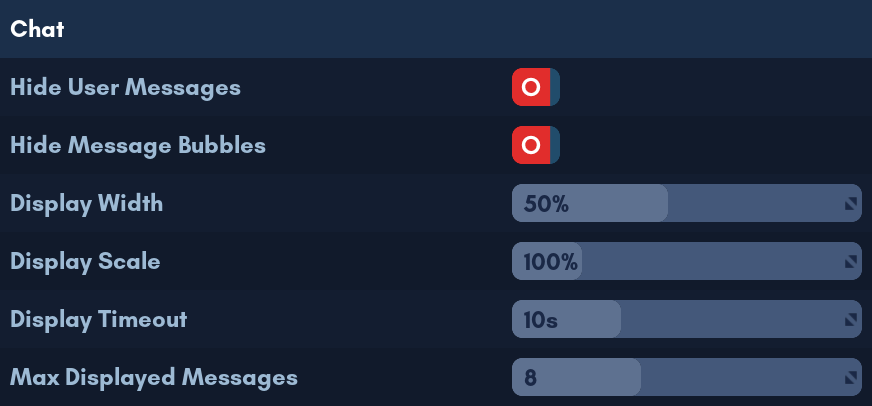
Hiding user messages
Want a quiet and focused experience without distracting chat in the background? You can hide user messages by turning on the "Hide User Messages" option.
This will silence future chat messages from users, but it will not wipe current chat history or silence system messages from servers (server configuration changes, autosave notifications, etc).
Note
There is currently no indicator to see if a player is hiding user messages on their end.
If you see someone being abnormally silent or unresponsive to your chat messages, this is the most likely reason.
When you are ready to see chat again, turn off the "Hide User Messages" option to recieve future chat messages.
Hiding chat bubbles
If you find the chat bubbles often clutter your screen too much, turn on the "Hide Message Bubbles" option to hide them.
Display Width
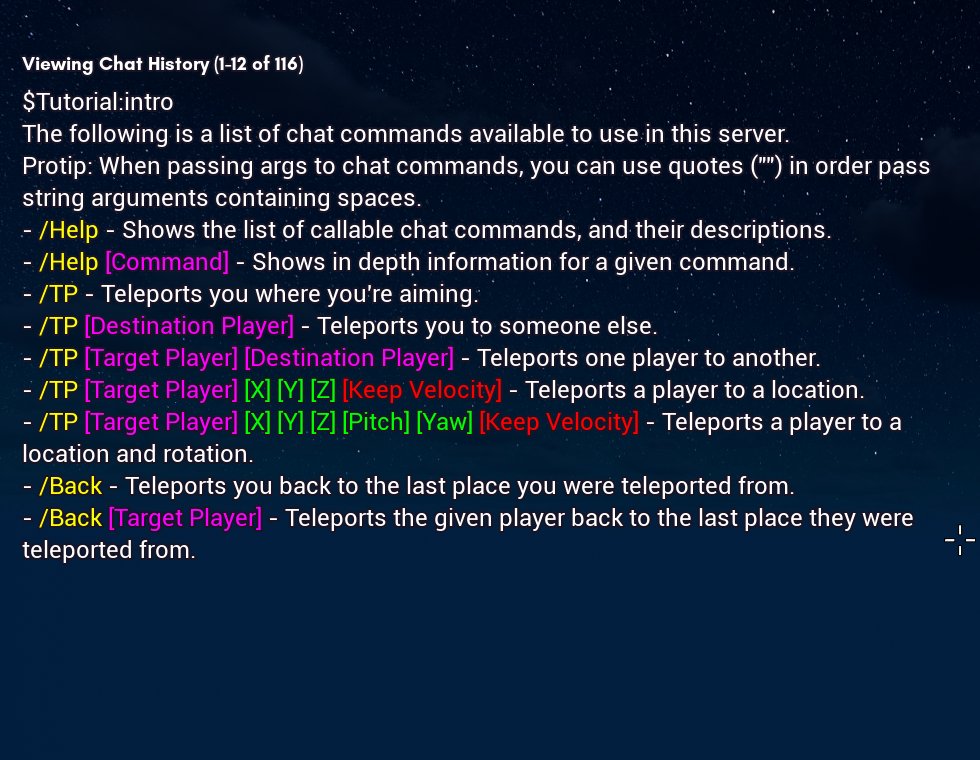
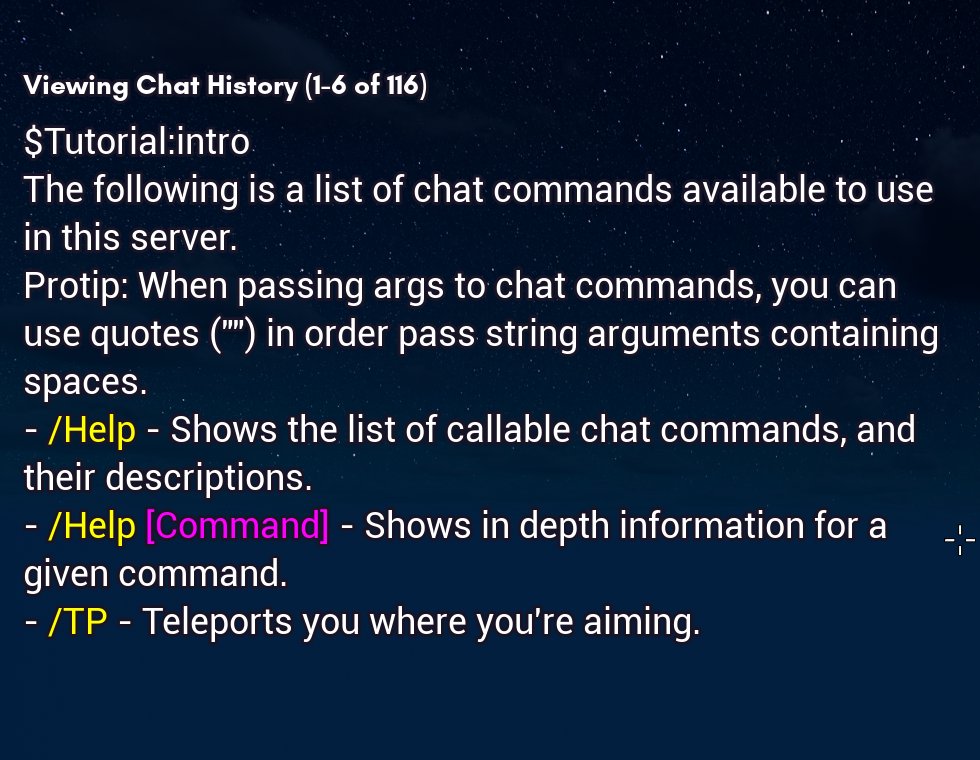
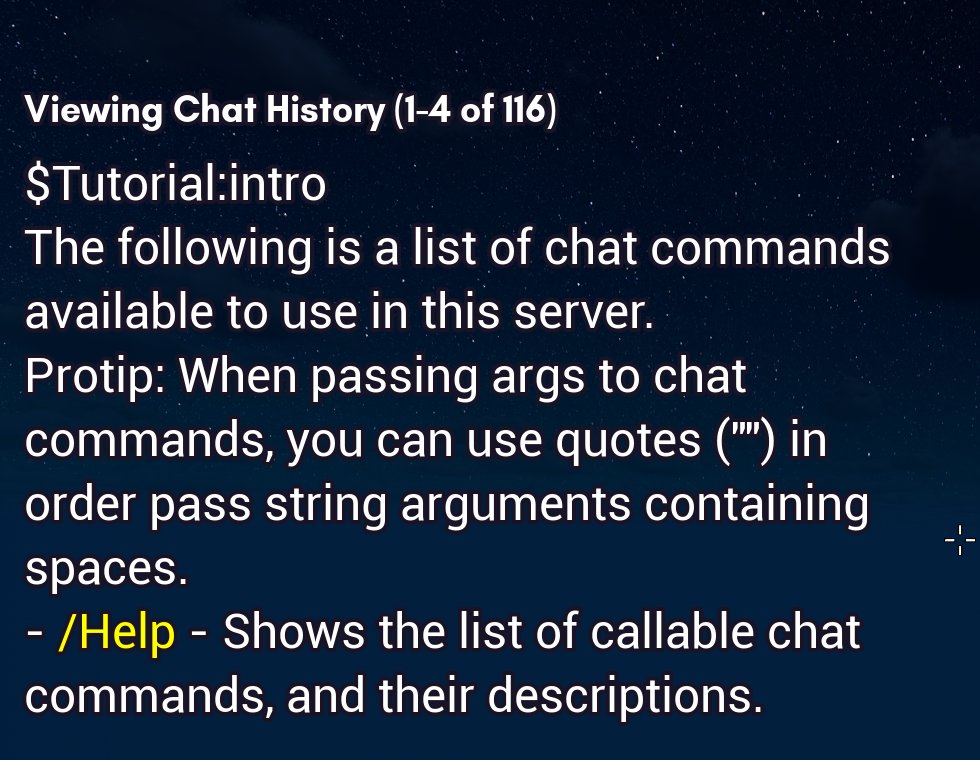
The width of the chat window. Relative to the game's screen size.
Less width is compact and saves screen space. Inversely, more width allows the chat to display lengthy messages.
Can be set from 25% to 100%.


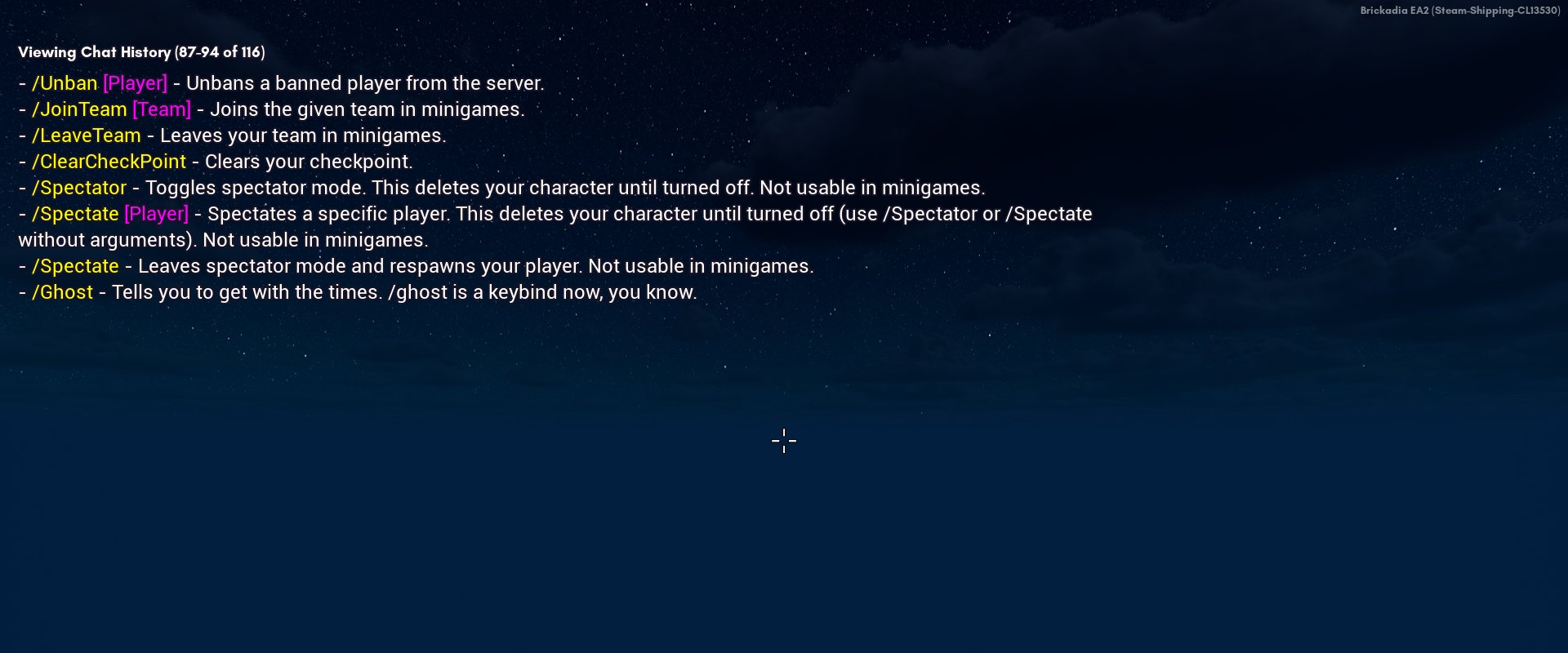
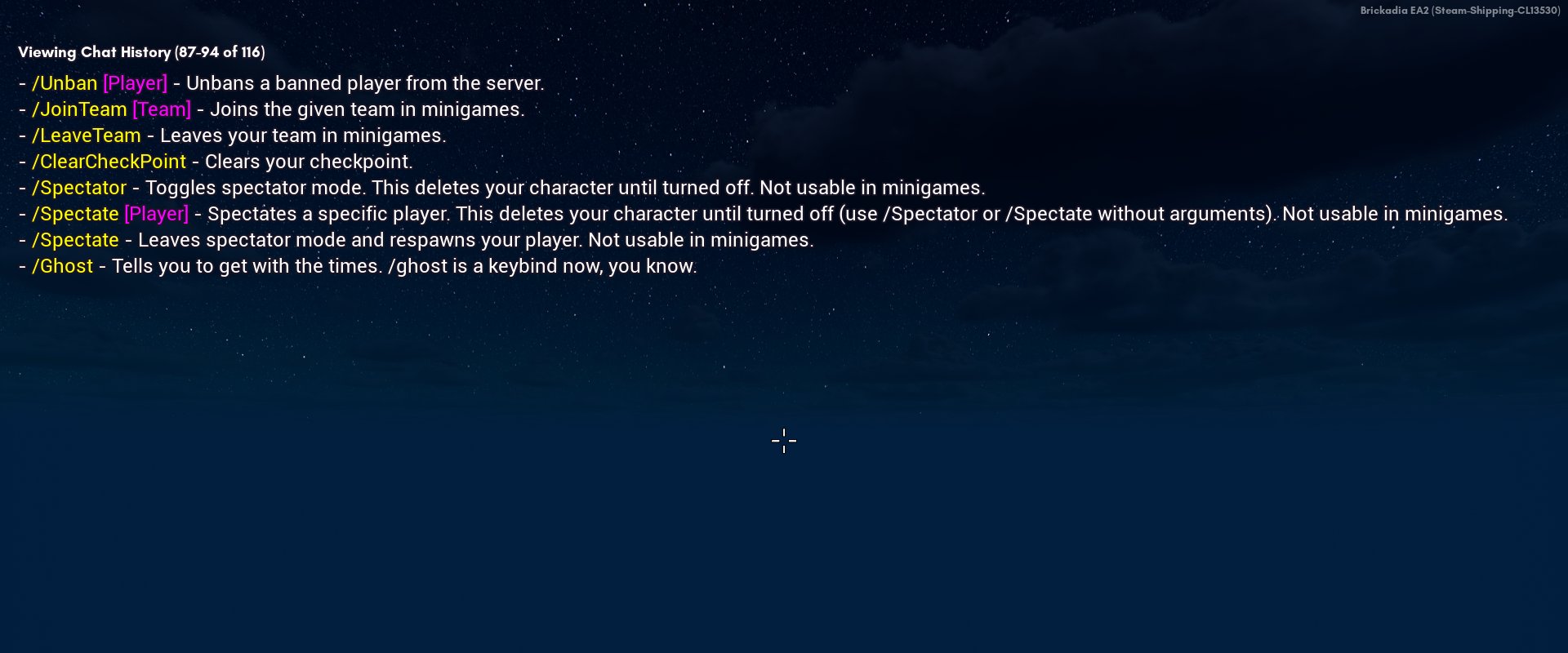
Display Scale
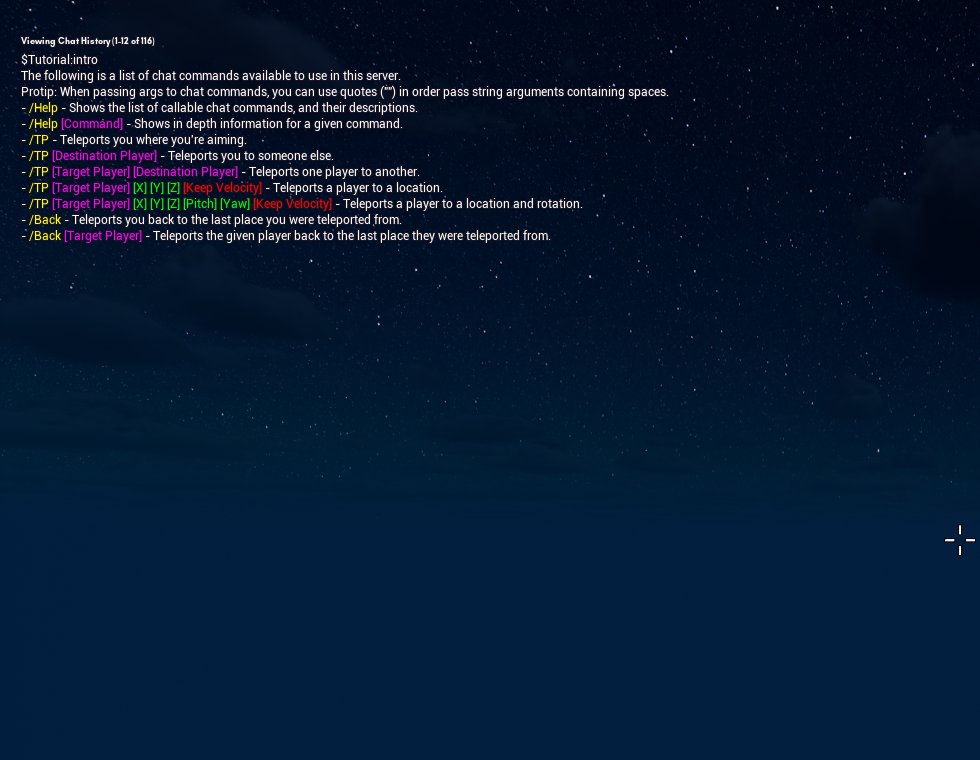
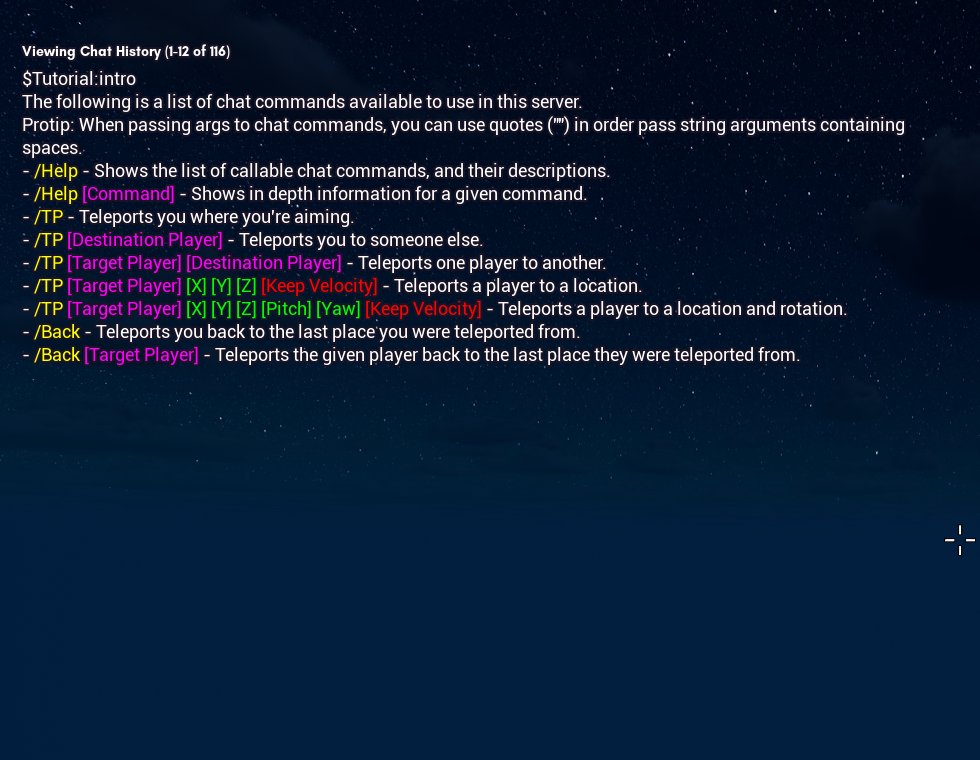
The scale of text in the chat window. Respects the display width. You may need to add more width or decrease maximum displayed messages if your messages start breaking up into new lines.
Can be set from 25% to 400%.
Note
The maximum message count has been manually set lower when the display scale gets larger for aesthetic reasons. If your display scale is too large it can overflow into the keybindings display.
Display Timeout
The interval at which new messages disappear. Longer intervals help with reading new messages.
Can be set beyond 30 seconds if you manually type in your desired time value.
Max Displayed Messages
The maximum number of new messages you can recieve in chat before having to scroll up.
Can be set from 1 to 20 messages.